How to Edit a Product in Afosto
After adding a product, you may still want to edit, delete, or add something.
Where to Edit a Product?
To edit a product, first navigate to the 'Products' tab on the left side of the menu.

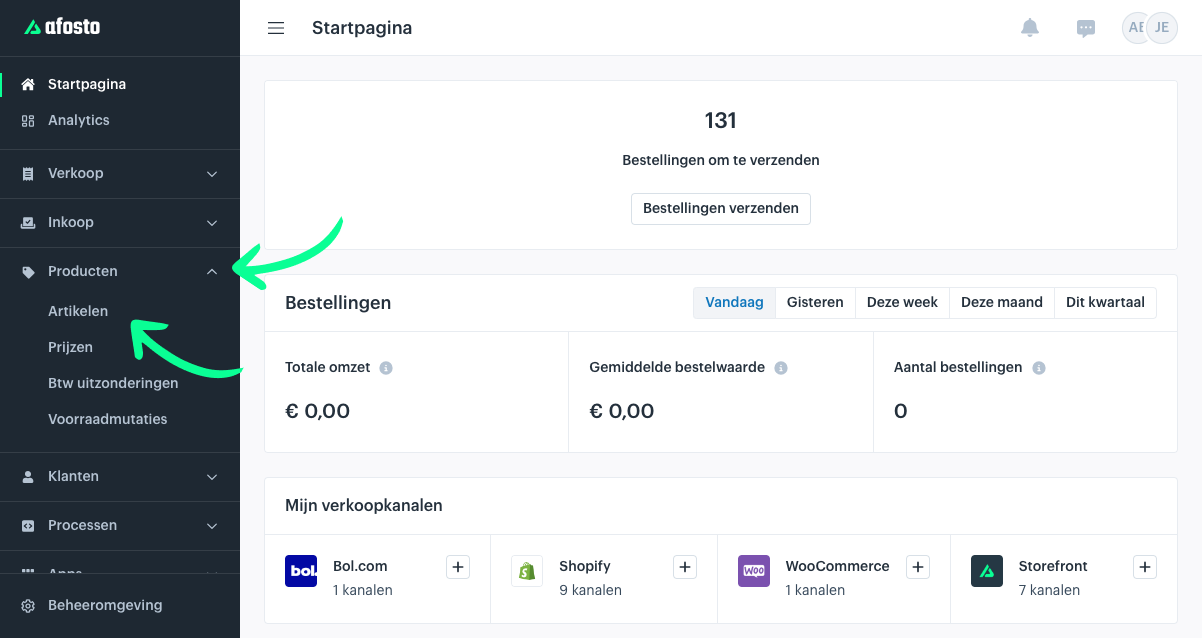
Next, click on 'Items'. On this page, you can then search for the item you want to edit. This can be by SKU, EAN, Label, or Brand. Enter this in the search bar.
Navigate to the Edit Page
On the page with the item you want to modify, navigate to the 'Edit' button.
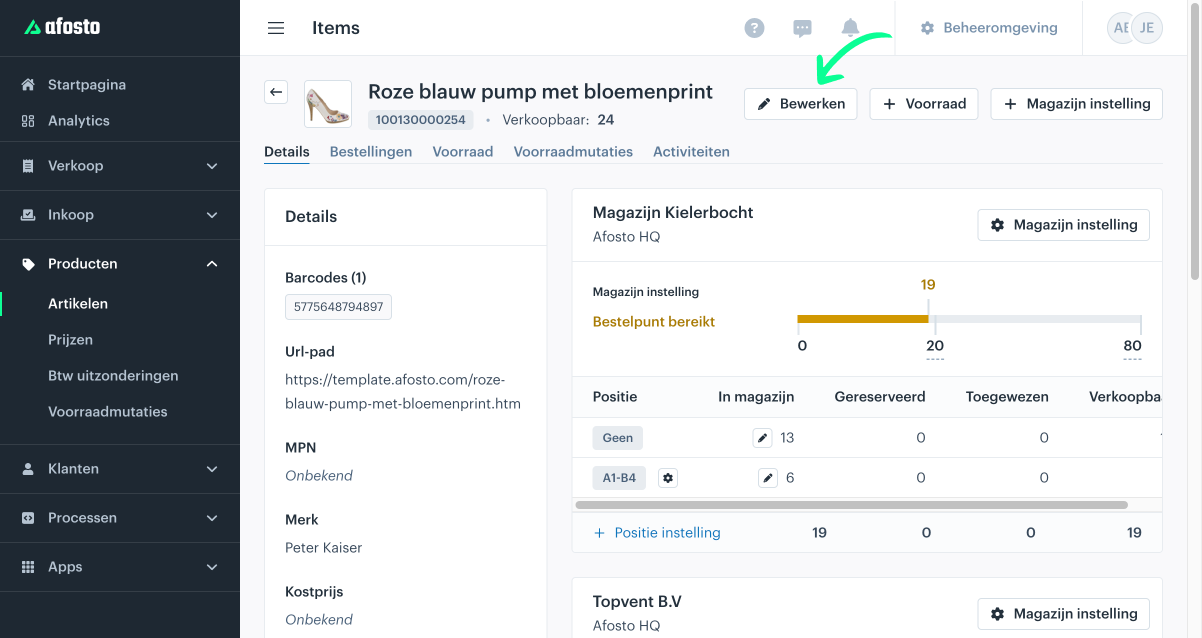
After clicking the 'Edit' button, the page where you can modify the item will open.
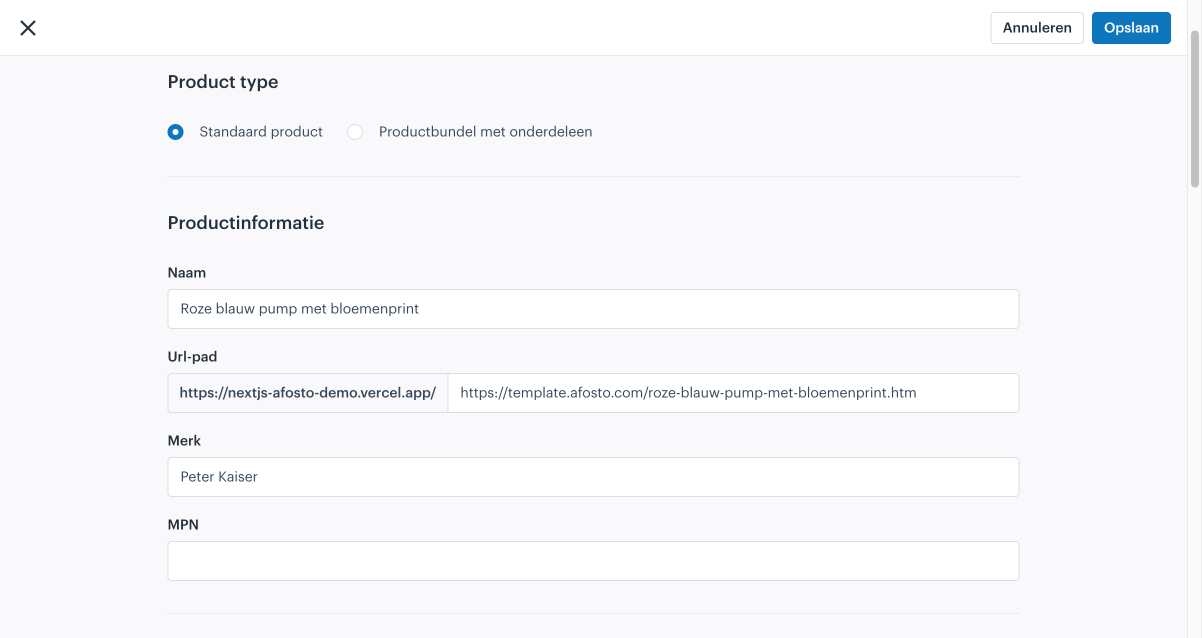
In this first section, you can choose between a Standard Product or a Product Bundle with components. More information about Product Bundles can be found here.
The following fields can be filled in or adjusted:
- Name: The name of your product in Afosto.
- URL Path: The display of your product in Afosto.
- Brand: The brand of the product in Afosto.
- MPN: This stands for Manufacturer Part Number, which distinguishes products from each other by the manufacturer.
Images and Barcodes
In the next section, you can add or remove images and barcodes.
It may happen that multiple barcodes are linked to a product and you no longer want this, or that you want to link an additional barcode to a product—for example, when a product is released in different countries with a different barcode. This way, you can still link the products together.
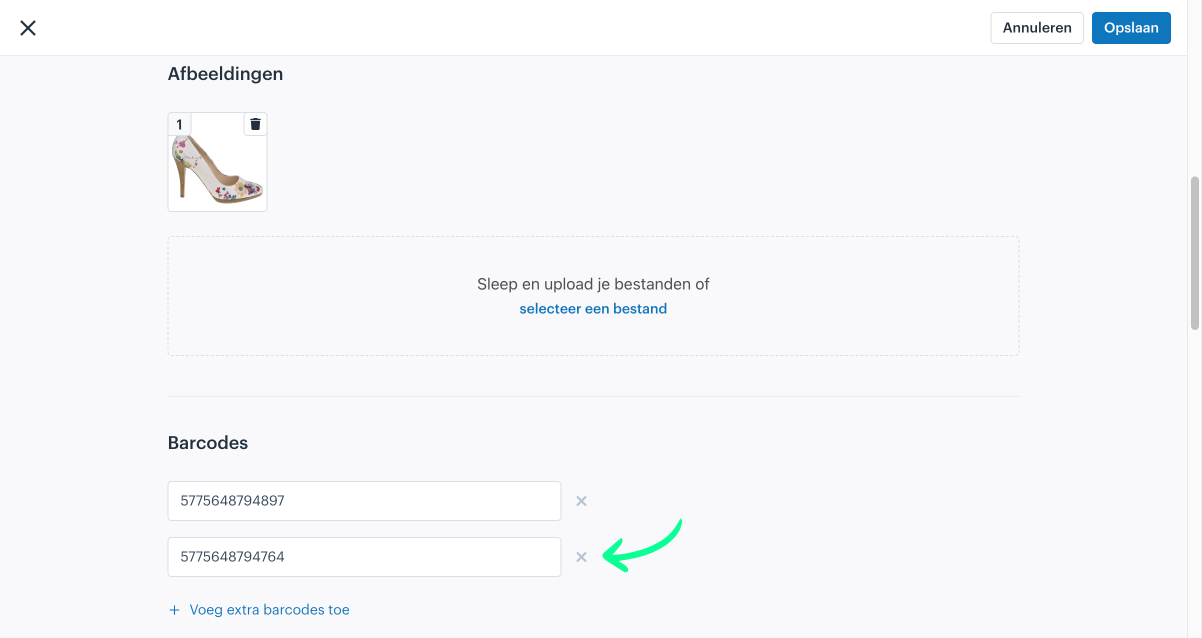
When you click the cross, the barcode will be removed from this product.
For Images, you can drag and drop a file or upload it, and you can also delete images here.
Add Product Prices
Here, you can add or modify the prices for this product.
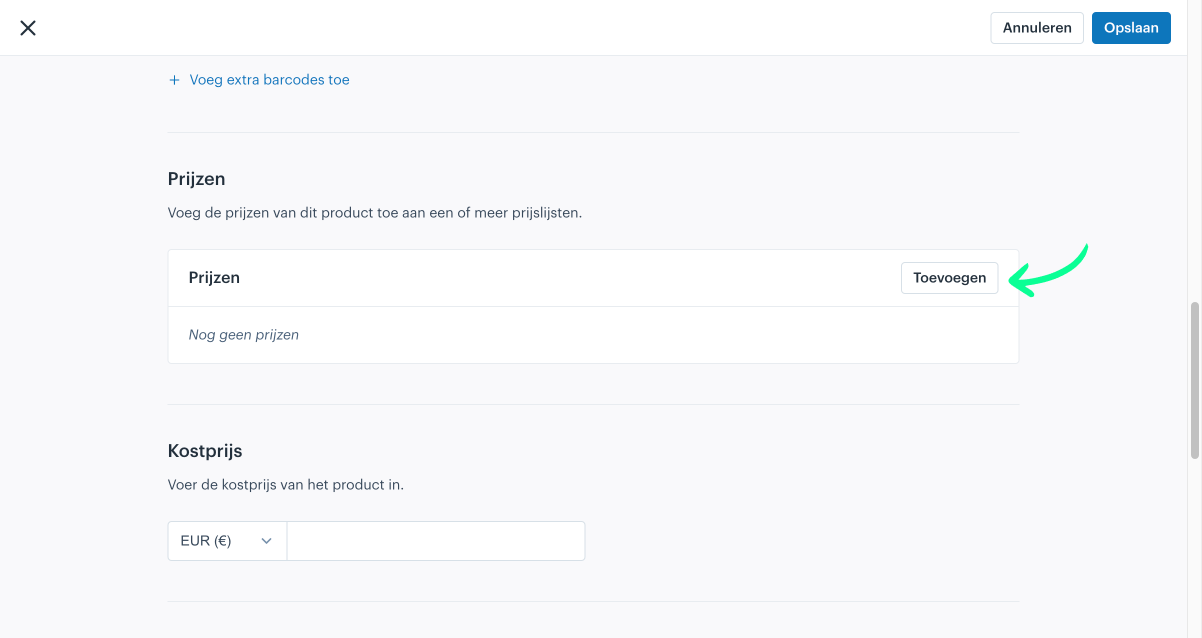
When you click the 'Add' button, you can add a price for this product. The following screen will then appear.


Here you can add a price list that you want to apply for this product. More information about price lists can be found here.
Sales Prices and Promotional Prices
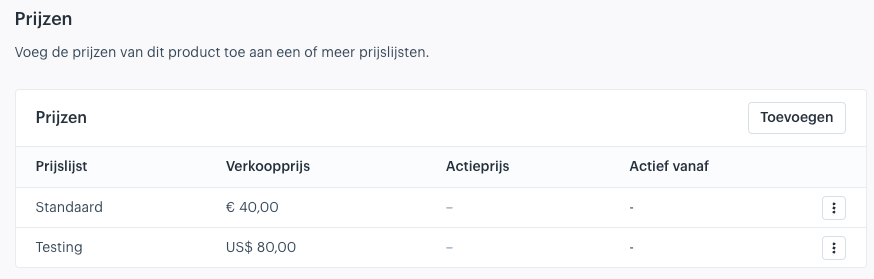
After adding a price list, you can set a sales price here.
You can also add a promotional price for this specific product. Under 'Active From', you can choose the date when this price will apply.
Finally, there is the option to add an additional price. This allows you, for example, to use different currencies for the same product. It should look like this:

Add Cost Price and Specifications
In this section, you can modify the cost price and the specifications for this product.

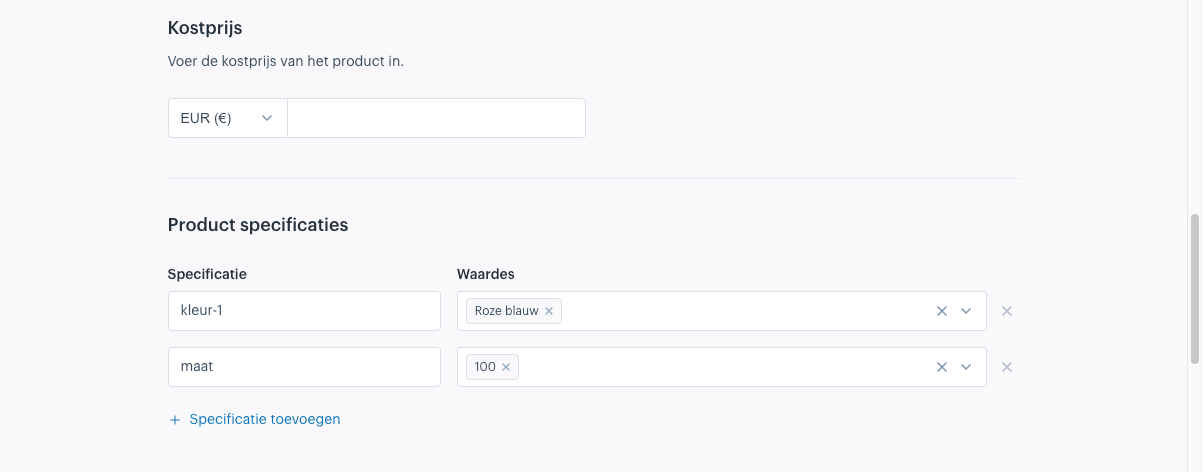
By entering the cost price, you can see, for each product, what your margin is, for example.
By clicking the '+ Add Specification' button, you can add specifications for this product. You can then choose to add an existing specification or create a new one. The same applies to the 'Values' option, where you can, for example, enter the color or dimensions of a product.
By clicking the cross next to a specification, you can also remove it if desired.
Required Variables When Adding Stock
In the last section, you can add required variables when adding stock for this product.

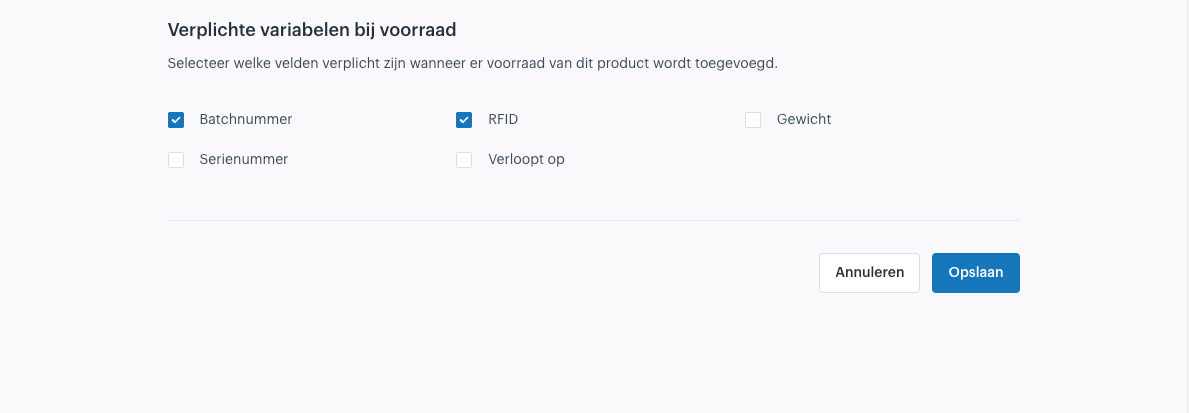
When you add stock for this product, for example in the WMS app, you will also need to fill in the selected variables. This can be useful if, for example, you always want to assign a unique serial number to new products.
Once you are satisfied with all the chosen settings, finally click 'Save'.